Installation
Prerequisites
| Requirement | Details |
|---|---|
| Civil 3D | Version 2023, 2024, 2025, 2026, or 2027 required |
| Windows | Windows 10 or 11 (64-bit) |
| drtwrk Account | Invite required — contact support@drtwrk.io if you haven't received one |
| Internet connection | Required for cloud processing |
drtwrk works best when different geometry types are on separate, clearly named layers — lot lines on their own layer, curb lines on their own layer, etc. Reorganize your file before starting if everything is on a single layer.
Download the installer
drtwrk access is invitation-based. When the drtwrk team adds you:
- Open the invitation email from the drtwrk team.
- Click Activate my access — this sets your password and opens the drtwrk download page.
- On the download page, click Download next to the latest desktop build.
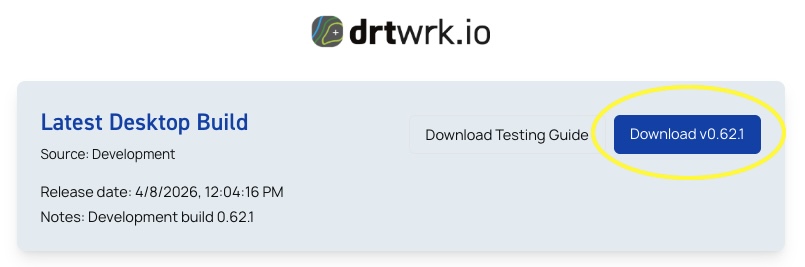
If you need to reinstall or update, the download page is also accessible from your drtwrk dashboard under Account > Downloads.
Close Civil 3D
The installer requires Civil 3D to be fully closed before proceeding. Save all open drawings first.
Run the installer
- Double-click the downloaded
.exefile. Do not use Run as Administrator: the installer installs for your Windows user only, and running it as a different administrator account installs the plugin into that account instead. - Accept the license agreement.
- On Additional Tasks, leave Enable Civil 3D crash capture selected if you want the drtwrk crash listener to prepare bug reports after Civil 3D crashes. This optional step may ask for administrator approval.
- Click Install and wait for completion.
If the installer reports that files cannot be written to the plugin destination folder, use the manual install instead.
The installer places the plugin files for every supported Civil 3D version in your user's Autodesk application plugins folder and installs the drtwrk Toolbar app in the Windows notification area.
The toolbar app handles sign-in, update checks, support actions, and crash reporting outside the Civil 3D ribbon. If you skip the crash-listener task during installation, you can enable it later from the toolbar menu with Enable Crash Capture.
Launch Civil 3D
Open Autodesk Civil 3D. The DRTWRK Tools ribbon tab appears at the top of the screen. If the ribbon tab doesn't appear, see the Troubleshooting section below.
Sign in
- Click the Account / Login button in the DRTWRK Tools ribbon tab.
- Enter your drtwrk credentials — the same email and password you use in the web app.
Once signed in, all plugin commands become available. The plugin stores your session token securely in Windows Credential Manager.
Automatic updates
The plugin keeps itself up to date automatically.
- On startup — the plugin checks for a new version after a 5-second delay. If an update is available, you are notified and can choose to download and install it.
- Manual check — click the Check for Updates button in the Account/Support ribbon panel at any time.
- Update logs — all update activity is recorded at
%LOCALAPPDATA%/DRTWRK/Civil3D/Logs/update_*.log.
Updating the plugin
To update to a newer version, download the new installer from Account > Downloads, close Civil 3D, and run the installer — it will automatically replace the previous version.
Uninstalling
Use Windows Settings → Apps → drtwrk for Civil 3D → Uninstall.
Manual install
Some managed or security-hardened PCs block the installer from writing to your AppData folder even though you can copy files there yourself. When that happens, install the plugin by hand:
- On the drtwrk download page, click Manual install (.zip) under the Download button.
- Close Civil 3D.
- Right-click the zip, select Properties, tick Unblock if it is shown, and click OK.
- Extract the zip.
- Press Win+R, enter
%APPDATA%\Autodesk\ApplicationPlugins, and press Enter. - If an
AutograderTools.bundlefolder is already there, open it and delete only itsContentsfolder. Keep everything else, such asUserData. - Copy the extracted
AutograderTools.bundlefolder into that folder, choosing Replace the files in the destination if Windows asks. - Start Civil 3D. If AutoCAD asks whether to load drtwrk files, choose Always Load.
The zip contains the Civil 3D plugin only. It does not include the drtwrk Toolbar app, so automatic updates and crash reporting are not available. To update, repeat these steps with the newest zip.
Troubleshooting
If the DRTWRK Tools ribbon tab does not appear after launching Civil 3D:
- Confirm the installer completed without errors.
- Verify you installed the correct version of the plugin for your Civil 3D release.
- Restart Civil 3D — in some cases the ribbon loads on the second launch.
- Check that no antivirus software blocked the plugin files during installation.