Quick Start
Before You Begin
Make sure you have the following before starting:
| Requirement | Details |
|---|---|
| Civil 3D | Version 2023, 2024, 2025, 2026, or 2027 required |
| drtwrk Access | Invite link required — contact support@drtwrk.io if you haven't received one |
| Internet connection | Required for cloud processing |
| Residential DWG file | Your project file, saved to your local machine |
Need help with any of the above? Contact support@drtwrk.io.
Activate your account
drtwrk accounts are created by invitation only. The drtwrk team will send you an activation email to get started.
- Open the activation email from the drtwrk team.
- Click Activate my access.
- Choose a password to complete your account setup.
- If your company already has a drtwrk workspace, you'll be prompted to join it automatically.
Install the Civil 3D plugin
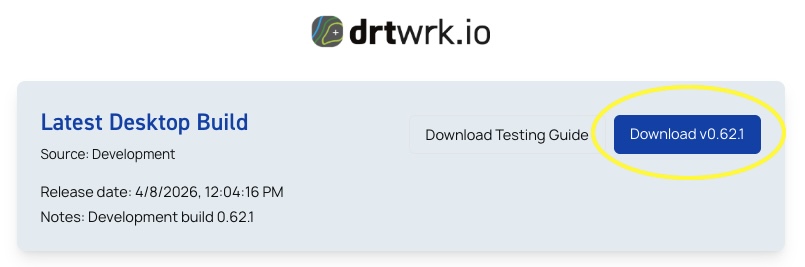
After activating your account, you'll be taken to the drtwrk download page. Click Download next to the latest desktop build.
Close Civil 3D if it is open, then run the installer and follow the on-screen prompts to complete installation. On Additional Tasks, the optional Enable Civil 3D crash capture step lets the drtwrk Toolbar crash listener prepare a bug report if Civil 3D crashes.
The plugin supports the following Civil 3D versions:
| Version | Supported |
|---|---|
| Civil 3D 2023 | Yes |
| Civil 3D 2024 | Yes |
| Civil 3D 2025 | Yes |
| Civil 3D 2026 | Yes |
| Civil 3D 2027 | Yes |
Launch the plugin and sign in
Open Civil 3D and click the DRTWRK Tools tab in the ribbon. In the Account/Support panel, click Account / Login and sign in with your drtwrk credentials. The plugin stores your session token locally.
The drtwrk Toolbar app also appears in the Windows notification area. Use it for sign-in, update checks, support, and crash reports.
Create a Project
When using the Civil 3D plugin, your project is created automatically the first time you run 2D Checks on a drawing.
Prepare your linework in Civil 3D
Before submitting a grading job, validate and clean your geometry inside Civil 3D.
- Open your drawing in Civil 3D.
- Run the
2DLINEWORKcommand (or click 2D Checks in the ribbon) and work through the Layer Review step of the wizard. Assign each layer to the correct geometry type: lot lines, curbs, road centerlines, edge of pavement, edge of swale, or right-of-way. - Continue through the wizard to validate and clean your 2D geometry.
- Review the results in the Grading Prep Review panel and fix any issues (overlapping lines, open endpoints, short segments).
- Run the
3DLINEWORKcommand (or click 3D Checks in the ribbon) to generate 3D feature lines with elevations assigned to each vertex. - Resolve any 3D-specific errors before proceeding.
Get Grading
- Run the
LOTZONEGRADINGcommand or click Lot & Zones Grading in the DRTWRK Tools ribbon. - Your file is uploaded to drtwrk.
- drtwrk automatically recognizes your linework into lots, zones, and areas.
- Apply a preset.
- Submit.
- Manual edit if needed.
- Export to CAD.
Next steps
- Grading Workflow — understand the end-to-end process
- Presets — save grading configurations for reuse
- Projects & Lots — how projects and lots are structured